How EraseText works
What happens when you erase text with EraseText — speed, clean fills, and why glow and shadow leave with the letters.
Upload a photo and EraseText finds the writing, rebuilds what sat underneath, and hands you a clean frame in a few seconds. The erase model itself usually finishes in about a second. It is free to try in the browser, and it is aimed at one job: taking text out of pictures without wrecking the rest.

Erase means rebuild, not paint over
In a finished JPEG the letters are not a layer you can switch off — they have already replaced the pixels underneath. A good erase invents a plausible patch for that hole and writes it back only where the text was. A weak one leaves a soft ghost of the word, or blurs a logo that should have stayed.
What “clean” is supposed to look like
Here is what a good result is supposed to look like on real photos:
- Leading quality on hard lettering — not just flat captions on a plain wall.
- Glow, stroke, shadow, reflection, and warped type leave with the letters, so the surface reads as one piece.
- No ghosting: you should not still read the word in the grain.
- Precise where it matters: neighbours and unmarked areas stay put.
- Forgiving masks: a box that runs a little wide or a little tight still clears the lettering completely — you do not need to trace every glyph.
- A few seconds end to end; about a second for the erase pass itself.
- Free on the web while you try it on your own files.
How you steer it
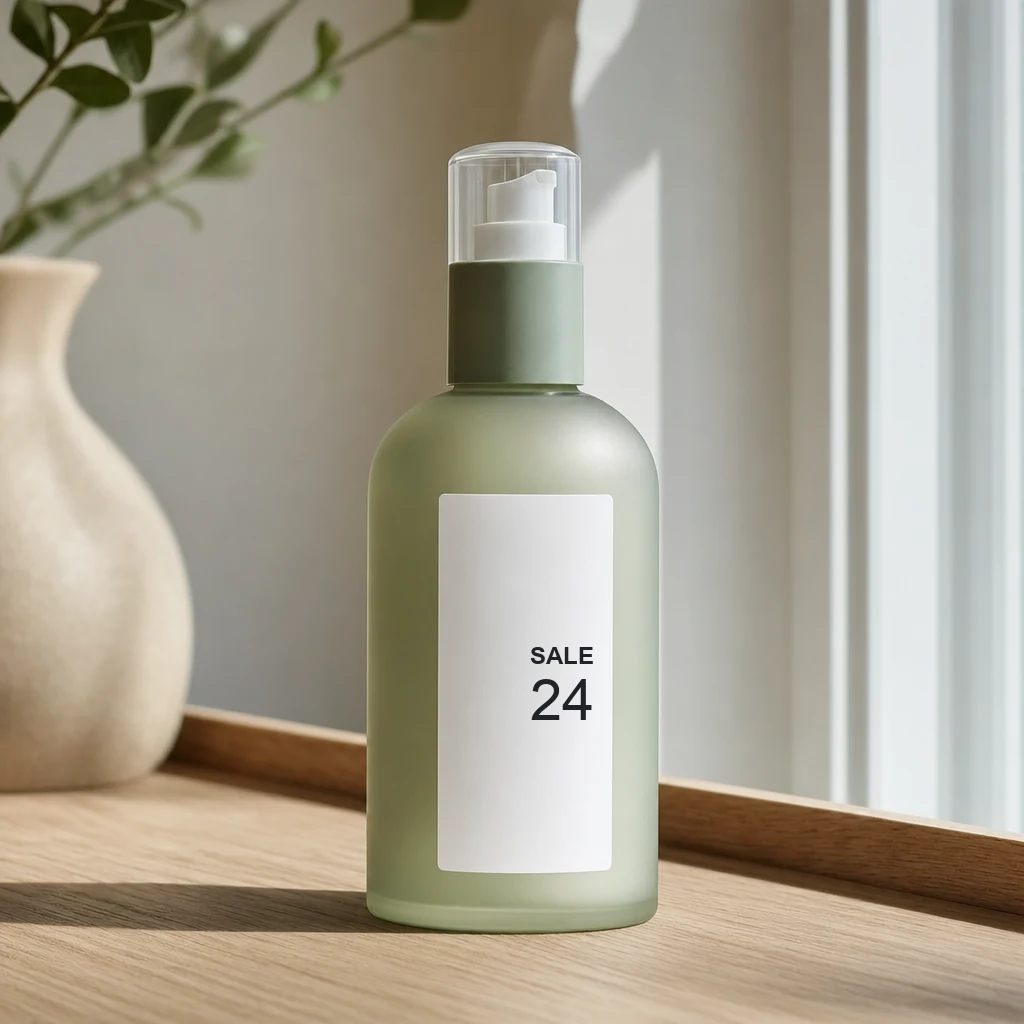
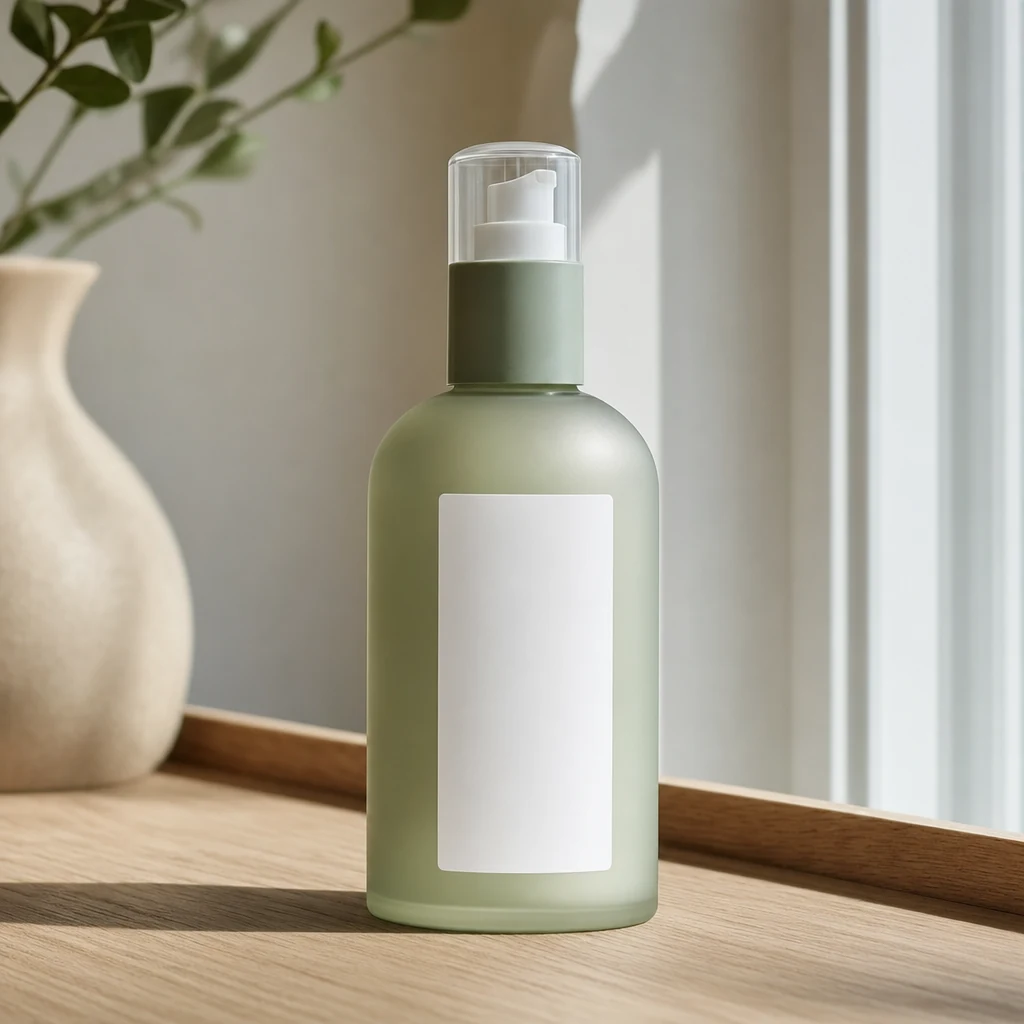
All text finds every word and builds the mask for you. Select text is for choosing which boxes go — erase the ones you tick, or keep them and erase the rest. A rough box is usually enough; the model still clears the full glyph, including glow and shadow that sit slightly outside. Outside the chosen region your original pixels stay put. All text and Select use the same specialised text erase as the API.
Brush erase is different: you paint the region yourself. Use it for a stubborn stamp or mark that detection did not box cleanly — not as a general “remove anything” tool. After All text you can also Restore-brush original pixels back where the erase went too far. When the plate is clean, Edit lets you place new copy without leaving the browser.
Try it on your own file
Upload a photo, run All text, watch the reveal, then Compare. You are looking at a specialised text erase — free, fast, and meant to leave everything else alone.
Ready to erase text on your own image?
Free upload, no sign-in — results in a few seconds. See all features or Help & FAQs if you need the tool map first.
Upload Image