Home/Ecommerce
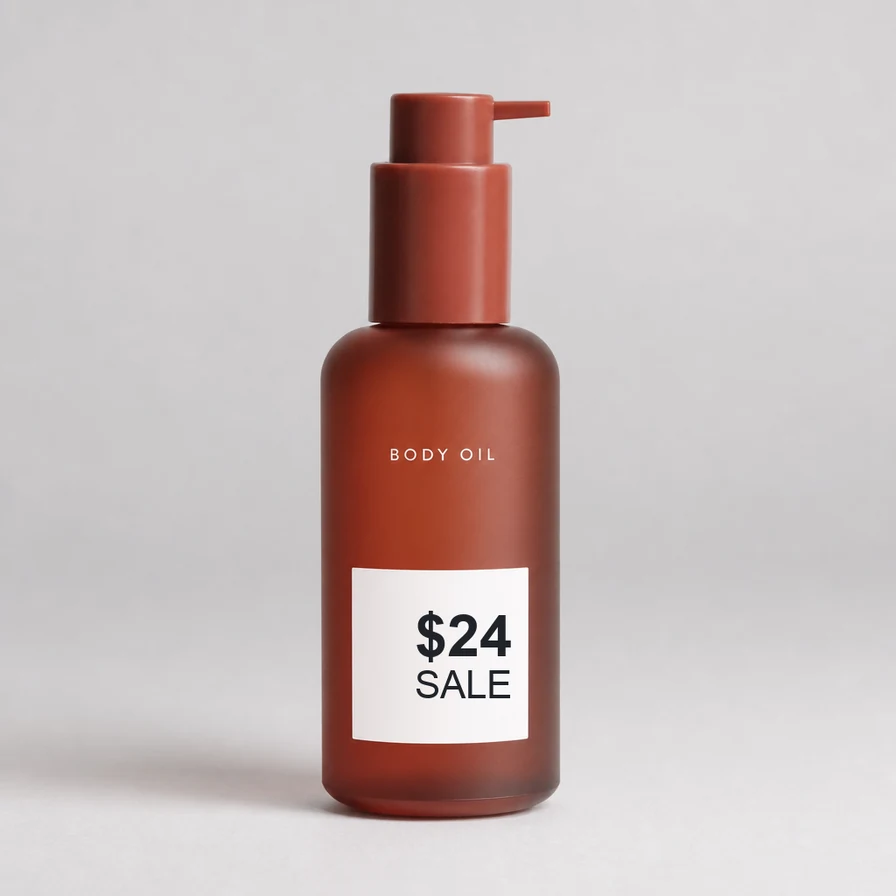
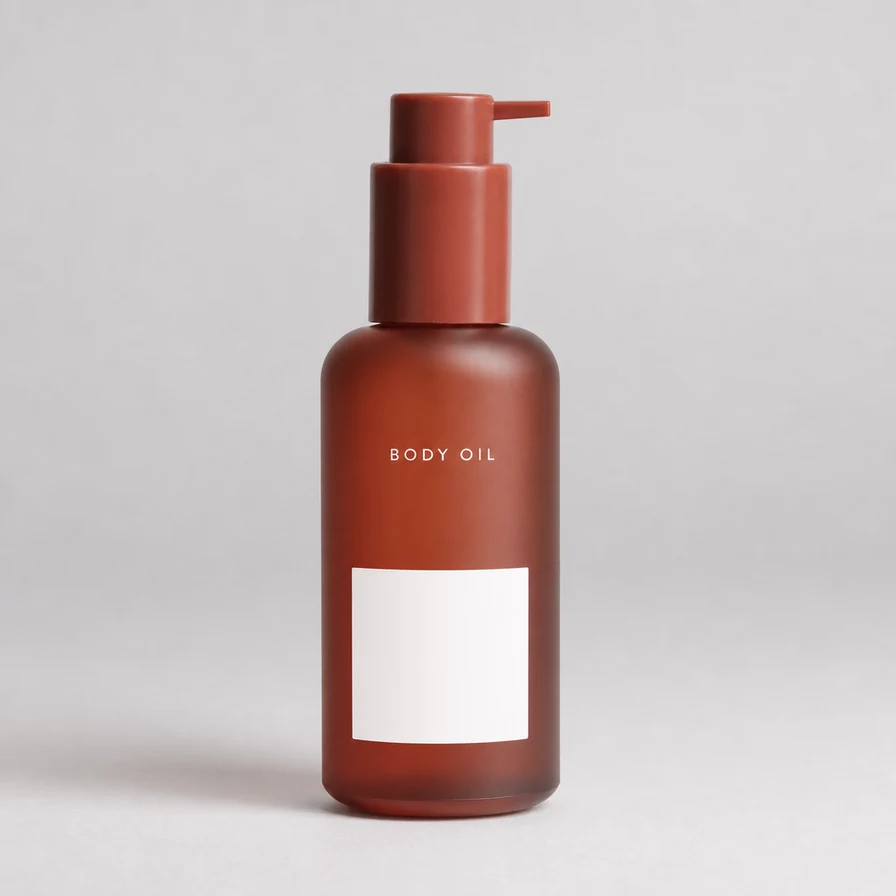
Clean product photosfor ecommerce
Clean in seconds, and it'sFree
No image? Try one of these:
By uploading an image or URL you agree to our Terms of Service. To learn more about how EraseText handles your personal data, check our Privacy Policy.
On a listing
Price stickers and labels
Warehouse and shelf shots arrive with yesterday’s price or a handwritten SKU. Erase the sticker instead of reshooting. All text for dense labels; Select when a brand mark printed on the pack must stay.
Marketplace watermarks
Pull a clean master before you push to a second channel that forbids another seller’s mark. Compare at 100% so the rebuild matches the product edge and does not soft-ghost the old overlay.
Catalogue scale
Many SKUs share the same overlay pattern. Clear one listing path, then repeat — spot-check odd packaging with Select or Brush. When the plate is clean, Edit can drop in the new price without a full redesign in your layout tool.
Listing workflow that survives audit
Upload the listing photo → erase stickers and channel marks → Compare → Download or Edit → sync back to the storefront. Keep originals read-only on your side; marketplaces sometimes ask for the source file. The free editor deletes uploads after one hour — download before you close the tab.
Packaging logos vs stickers
Printed brand art on the box is often worth keeping. Select text (erase selected, or keep selected and erase the rest) is the everyday tool for that split. All text is faster when every overlay and price tag should go. Brush handles a mark detection never boxed — a faint corner stamp or a sticker on a reflective surface.
Quality bar for product edges
Zoom to the sticker boundary: the rebuild should meet the pack edge without a mushy halo, and neighbouring SKUs or shelf texture should look continuous. If a solid colour slab sat under a badge, clear the glyphs first, then Brush the slab if it remains.
After erase: new price in Edit
Edit opens the clean plate (or the original) so you can place updated copy without leaving the browser. Download exports the edited canvas. For complex catalogue templates you can still export the clean plate into your usual design tool.
Questions
How do I clean a product photo for a listing?
Upload the packshot and run All text. Use Select when printed brand art on the box must stay. Compare the pack edge at 100%, then download or open Edit.
Can I put a new price on the same shot?
Yes. Once overlays are gone, Edit places the updated price on the clean plate. No reshoot unless you want one.
What about a whole catalogue?
Clear one listing path here, then Bulk Erase the folder. Spot-check odd packaging in Select or Brush.
How it goes
- 1Upload a listing photo (up to 25 MB / 8000 × 8000)
- 2Erase stickers and channel marks with All text, Select, or Brush
- 3Compare at 100%, then Download — or Edit the new price and sync to the storefront